
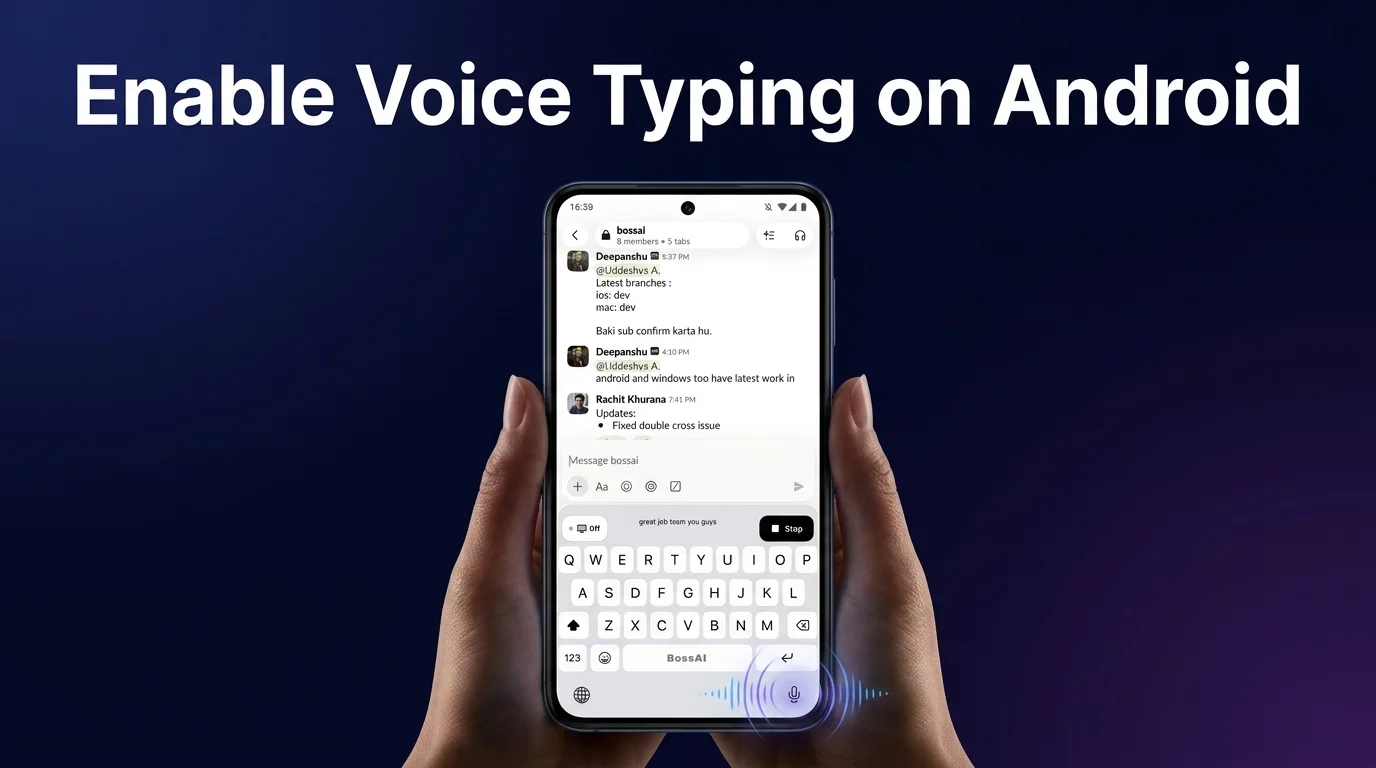
Enable Voice Typing on Android | BossAI
How to Enable Voice Typing Android: A Complete Setup Guide
Two taps in Android's Settings menu and the microphone key starts transcribing — that part is genuinely fast. What most guides skip is what happens after: a transcript full of run-on sentences, stray "ums," and missing punctuation, left for you to fix by hand.
This guide covers how to enable voice typing android phones already include by default, walks through the exact settings path (including the Samsung variant), and shows where native dictation stops and AI-enhanced tools like BossAI pick up.
Key Takeaways
- Voice typing is built into every Android device via Settings → Languages & Input → Virtual Keyboard → Voice Input; activated in one tap with no download or setup required.
- Native Android voice typing is free but basic: it transcribes words without removing filler words ("um," "uh"), correcting grammar, or understanding context — leaving manual cleanup to the user.
- AI-enhanced voice typing apps like BossAI add real-time filler removal, grammar correction, punctuation, and context-aware formatting — creating publication-ready text on first pass.
- BossAI's Boss Mode reads your screen and writes contextual replies without copy-pasting — a feature native Android voice typing doesn't have.
- Multi-language voice typing on Android requires enabling additional languages in Settings; BossAI handles auto-detection across 100+ languages in a single pass.
Contents
- Can I Enable Voice Typing Android?
- How Do You Enable Voice Typing Android Settings in Two Minutes?
- Why Isn't Voice Typing Working on Android?
- How Accurate Is Android's Native Voice Typing?
- What's the Difference Between Android Voice Typing and AI Dictation?
- What Makes BossAI Different From Native Android Voice Typing?
- Do I Need to Download a New App to Use Voice Typing on Android?
- Can Voice Typing on Android Work in Multiple Languages?
- What Are the Best Real-World Ways to Use Voice Typing on Android?
Can I Enable Voice Typing Android?
Yes — every Android phone ships with voice typing built into its default keyboard, and turning it on takes about a minute in Settings. No download, no account, no extra permissions beyond microphone access, which the system asks for the first time you tap the mic key.
Google's Gboard handles this on stock Android and most third-party phones. Samsung, OnePlus, and other manufacturers ship their own keyboard with the same underlying voice input toggle, just filed under a slightly different settings menu.
Either way, the feature has been standard on Android for years. If your microphone key on the keyboard isn't doing anything yet, it's a settings issue, not a missing feature.
How Do You Enable Voice Typing Android Settings in Two Minutes?
Open Settings, go to System (or General Management on Samsung), then Languages & Input, tap Virtual Keyboard, select your keyboard app, and switch on Voice Input. From there, a microphone icon appears on your keyboard's spacebar row in any app.
The exact steps, spelled out:
- Open Settings and tap System (labeled General Management on Samsung devices).
- Tap Languages & Input, then Virtual Keyboard.
- Select your active keyboard — usually Gboard or Samsung Keyboard.
- Tap Voice Input or Google Voice Typing and toggle it on.
- Grant microphone permission when prompted, then open any app and tap the mic icon on your keyboard.
Want to use voice typing specifically inside WhatsApp, Gmail, or a notes app? No separate setup is needed — once the toggle above is on, the same microphone key works in every text field across your phone.
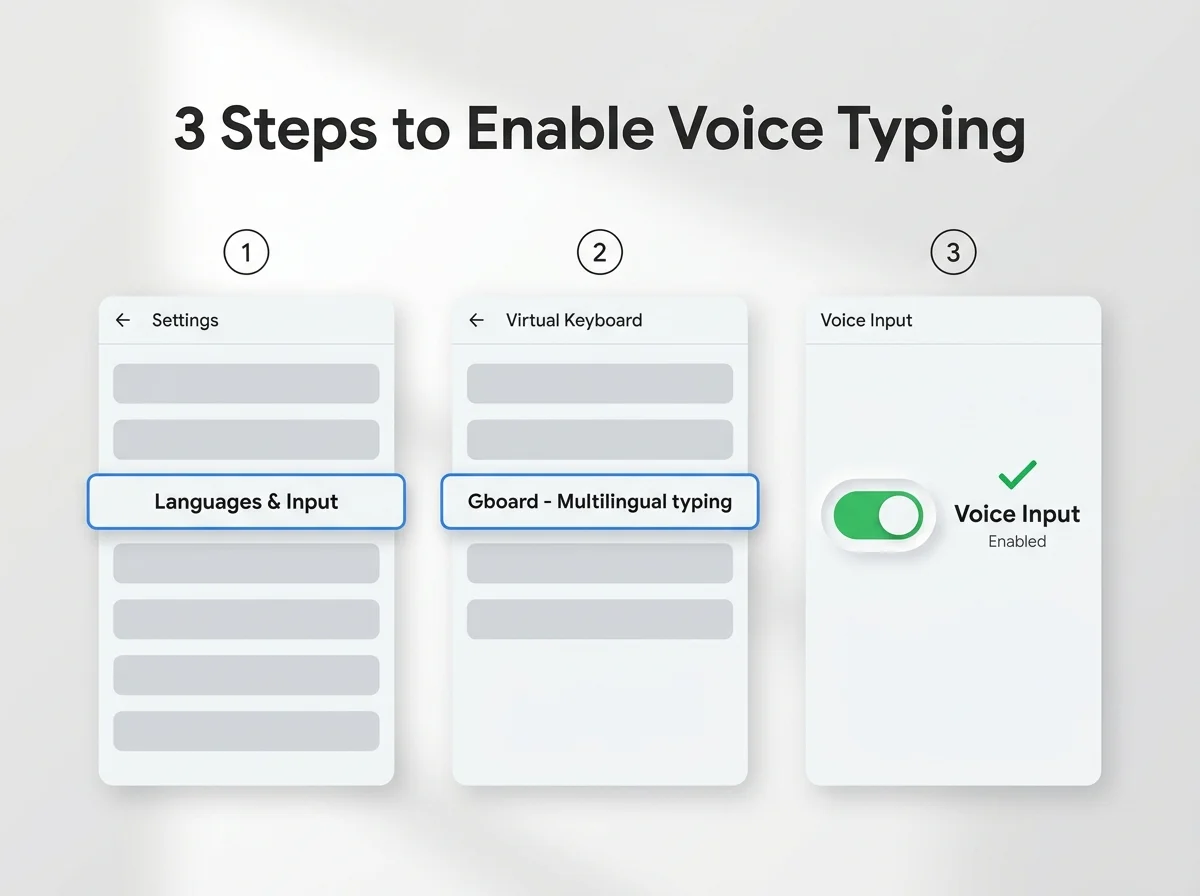 The three-screen path: Languages & Input, Virtual Keyboard, then the Voice Input toggle.
Worth knowing: Samsung's path skips the word "System" entirely — look for "General Management" instead, since Samsung reorganizes the top-level Settings menu differently from stock Android.
Why Isn't Voice Typing Working on Android?
The mic key usually fails for one of three reasons: the keyboard app doesn't have microphone permission, voice input got toggled off somewhere in a system update, or a different keyboard app is set as default and it doesn't have the same setting enabled. Each has a one-step fix.
Check permissions first: Settings → Apps → your keyboard app → Permissions → Microphone → set to "Allow." This is the single most common cause, especially after installing a new keyboard or restoring a phone from backup.
If permissions look fine, confirm your keyboard app is actually the one selected as default under Languages & Input, since two keyboards can be installed with only one active.
Common mistake: People re-enable voice typing on Gboard but forget they switched their default keyboard to a different app months earlier — the toggle only applies to whichever keyboard is currently active.
How Accurate Is Android's Native Voice Typing?
Android's built-in voice typing is accurate for clear speech in quiet rooms, but it transcribes exactly what it hears — filler words, run-ons, and all — with no grammar correction or punctuation added beyond basic sentence breaks. It also resets to plain transcription every time; there's no memory of your vocabulary or writing style.
That's fine for a quick text to a friend. It gets frustrating fast for anything longer: a work email, a set of meeting notes, a reply that needs to sound put-together on the first try.
Reality check: Native voice typing was built to save you from typing, not from editing. The cleanup step is still yours.
What's the Difference Between Android Voice Typing and AI Dictation?
Native Android voice typing transcribes speech word-for-word; AI dictation tools process that same speech through a language model that removes filler words, fixes grammar, adds punctuation, and formats the result for the app you're typing into. The transcription engine is doing similar work either way — the difference shows up in what happens to the words after you stop talking.
A real side-by-side makes this concrete. In one dictation pass inside Slack, BossAI's keyboard showed a live transcript reading roughly "great job team you guys" — lowercase, no punctuation, exactly what native dictation would leave behind. The finished message that landed in the chat field read "Great job, team 👍. You guys are the best." — capitalized, punctuated, with a comma and an emoji BossAI added based on tone, not a single manual edit required.
| Feature | Native Android (Gboard/Samsung) | AI-Enhanced (BossAI) |
|---|---|---|
| Setup | Built-in, one tap in Settings | Free download, Google Play |
| Filler word removal | No — "um," "uh," "like" stay in | Yes, removed in real time |
| Grammar & punctuation | Raw transcription only | Auto-corrected and punctuated |
| Context awareness | Same output in every app | Adjusts tone for chat vs. email vs. notes |
| Screen-aware replies | Not available | Boss Mode drafts replies from on-screen context |
| Reusable snippets | Not available | Clips — save and paste in one tap |
| Multi-language | Manual switch per session | Auto-detects across 100+ languages |
| Cost | Free | Free (500 words/day), $9.99/month Pro |
What Makes BossAI Different From Native Android Voice Typing?
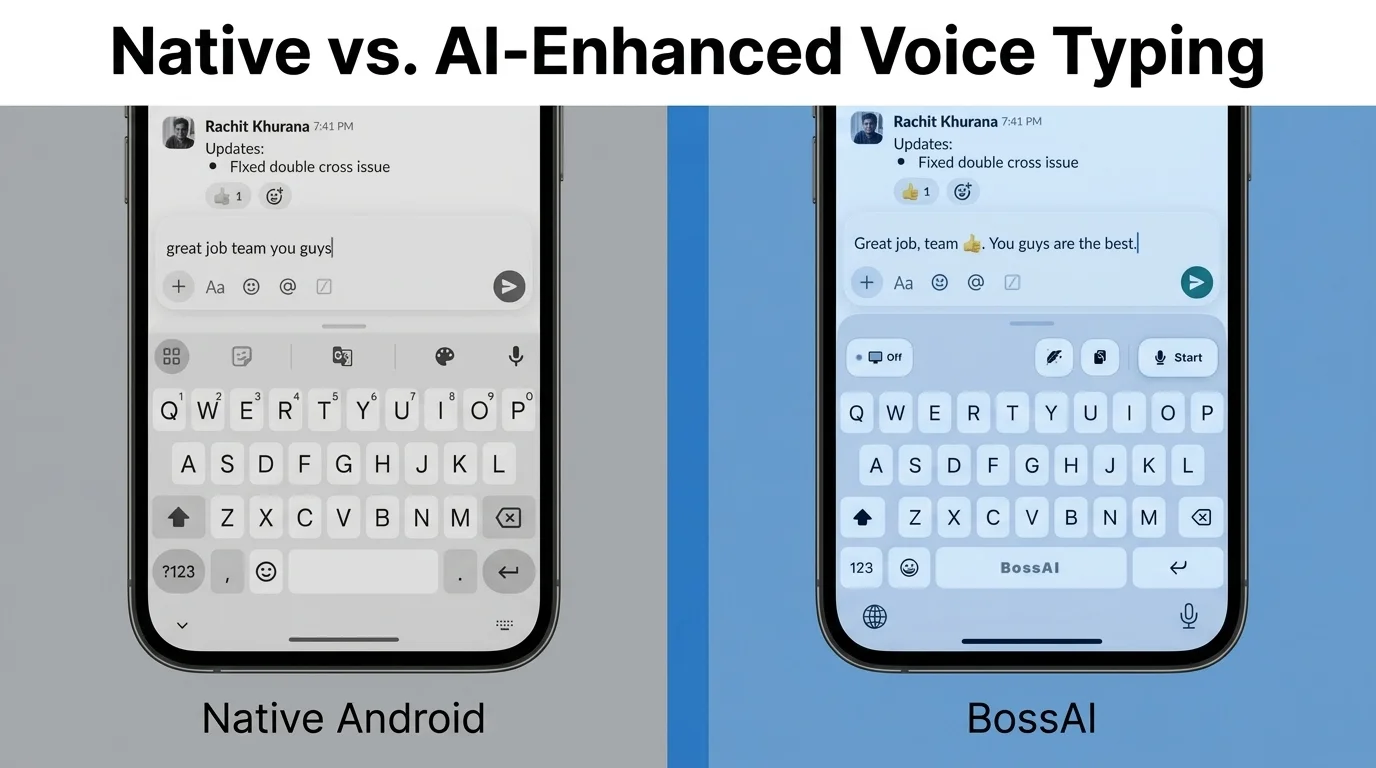 Native transcription on the left, BossAI's refined output on the right — same speech, different result.
BossAI replaces Android's default keyboard entirely, so the same dictation, rewrite, and cleanup shown above happen automatically in every app — not as a separate step you run afterward. It's the AI upgrade layered on top of what Android already gives you for free.
Three features go beyond dictation. Boss Mode reads whatever is on screen and drafts a contextual reply on command — "Boss, reply to this email confirming Friday" — without you copying a single word. Rewrite switches the tone of anything you've dictated with one tap: Professional, Casual, Witty, and four more. Clips saves text you paste often — a Calendly link, an address, a standard reply — so it's one tap away instead of a copy-paste hunt through old messages.
None of that requires giving up the setup you just finished above; installing BossAI's voice keyboard for Android replaces the mic key's output, not the settings path that gets you there.
Do I Need to Download a New App to Use Voice Typing on Android?
No — native voice typing works with zero downloads, since it's already part of your phone's keyboard. You only need a new app if you want the AI layer: filler removal, grammar correction, Boss Mode, or Clips, none of which native Android voice typing includes.
That download is a single step through Google Play, and it replaces your keyboard the same way switching from Gboard to Samsung Keyboard would — no account required to start.
For the bigger picture of how this works across every device you own, not just Android, see our full guide on how to type with voice.
Can Voice Typing on Android Work in Multiple Languages?
Yes, but native Android voice typing only recognizes languages you've manually added under Settings → Languages & Input → Languages, and you have to switch the active input language before you speak. It doesn't detect language changes mid-sentence.
BossAI handles this differently — it auto-detects across 100+ languages in a single pass, so switching between English and a second language mid-conversation doesn't require touching a settings menu at all.
What Are the Best Real-World Ways to Use Voice Typing on Android?
Voice typing is most useful anywhere you'd normally type on a small screen: chat apps, email, and quick notes, where dictating a full sentence beats thumb-typing it. The setup is identical across all three — the same mic key, the same keyboard, no per-app configuration.
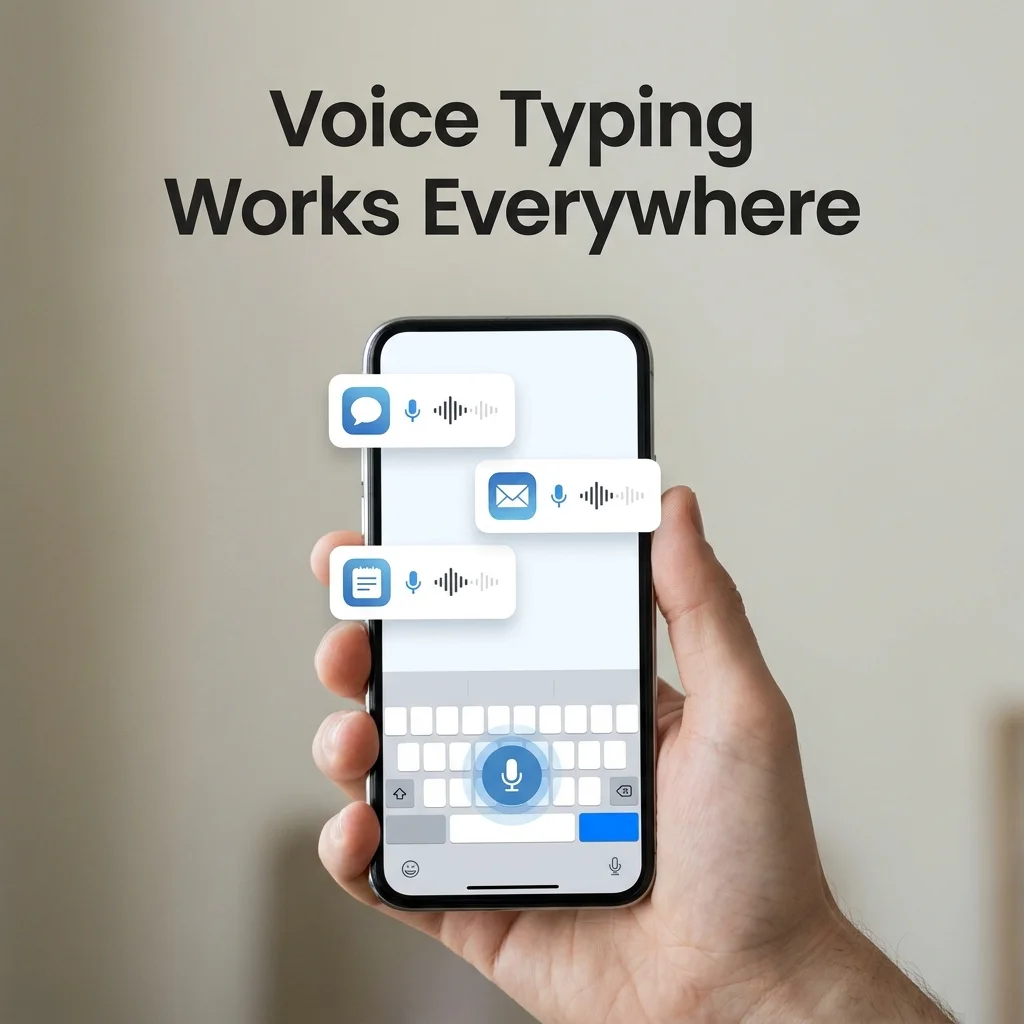 The same voice keyboard carries over between chat, email, and notes apps without switching tools.
Messaging is the most common case by far — worth a closer look if that's your main use, in our breakdown of hands-free texting on Android. For a wider comparison of dictation and text-to-speech apps beyond what's built into Android, our guide to text-to-speech and voice typing apps for Android covers the full field.
Email benefits the most from AI cleanup specifically, since a dictated reply with filler words and no punctuation reads unfinished in a way a text message doesn't. Notes apps sit somewhere in between — accuracy matters more than polish when you're capturing an idea before it disappears.
Get Started with BossAI
Native voice typing gets your words on the screen. BossAI takes the same speech and hands back text that's already punctuated, grammar-checked, and formatted for the app you're in — plus Boss Mode, Rewrite, and Clips on top.
Frequently Asked Questions
Is voice typing free on Android? Yes. Voice typing is built into every Android device through Gboard or your keyboard app's Settings menu, and turning it on costs nothing. Third-party AI dictation apps like BossAI add a free tier too — 500 words per day — before any paid upgrade is needed.
What's the difference between Samsung voice typing and Google voice typing? Samsung phones use Samsung Keyboard's own voice input, while most other Android phones default to Google's Gboard. Both transcribe speech the same basic way, but the settings path differs — Samsung nests the toggle under "General Management" instead of the system-wide Languages & Input screen.
Where do I find voice typing if I don't see "Languages & Input" in Settings? Some Android skins hide it under a different label. Look for "General Management," "System," or search your Settings app directly for "voice input" or "virtual keyboard" — the toggle exists on every Android device, even when the menu name varies by manufacturer.
Can I use voice typing inside WhatsApp on Android? Yes. Voice typing works in WhatsApp the same way it works in any Android text field — tap the microphone icon on your keyboard while composing a message. No separate setup inside WhatsApp is needed once voice input is enabled in your keyboard's settings.
What is BossAI? BossAI is an AI-powered voice keyboard for Android, iOS, macOS, and Windows that replaces typing with dictation. It transcribes speech in real time, strips out filler words automatically, rewrites text in different tones with one tap, and includes Boss Mode, which reads your screen to draft contextual replies.
How accurate is BossAI compared to Android's native voice typing? BossAI uses advanced speech recognition that performs well in quiet environments and handles accented speech accurately. Unlike Android's native voice typing, it automatically strips filler words and fixes grammar in real time, producing cleaner output than Gboard without any manual cleanup afterward.