
Chrome Extension Speechify: How It Works & What It Costs
Chrome Extension Speechify: What It Does, How to Install It, and What It Costs
Add the Speechify Chrome extension to your browser and any text on your screen becomes audio — articles, PDFs, emails, Google Docs. That's the entire premise. If you've been wondering whether it's worth installing, here's the honest breakdown.
 Speechify's Chrome extension converts on-screen text to audio — useful for long reads, research, and accessibility workflows.
Key Takeaways
- Speechify's Chrome extension reads any webpage text aloud with adjustable playback speed and support for 60+ languages.
- The free tier limits you to roughly 2,000 words per week; premium starts at $15/month ($8/month billed annually) and removes all limits.
- Installation takes under 60 seconds: add from the Chrome Web Store, grant page-reading permissions, highlight text, and press play.
- Speechify is built for consuming long-form content (articles, PDFs, emails); BossAI is built for producing text faster via voice dictation and screen-aware replies.
- The key distinction: Speechify helps you consume information passively; BossAI helps you create and respond actively with hands-free voice commands.
Contents
- What Does the Chrome Extension Speechify Do?
- How Do I Install the Chrome Extension Speechify?
- How Does Speechify's Chrome Extension Work on PDFs and Web Pages?
- How Much Does the Speechify Chrome Extension Cost?
- Can You Use Speechify for Free on Chrome?
- What Languages Does the Speechify Chrome Extension Support?
- Is the Speechify Chrome Extension Accurate and Safe?
- How Speechify's Chrome Extension Compares to BossAI
- FAQ
What Does the Chrome Extension Speechify Do?
Speechify's Chrome extension is a text-to-speech add-on that reads any webpage, PDF, Google Doc, or highlighted text selection aloud inside your browser. It does not transcribe your voice — it speaks written content back to you. The extension works across virtually any site in Chrome without needing to copy or paste content into a separate app first.
It's the browser-native version of Speechify's broader app ecosystem. Click the extension icon (or highlight text), and a floating reader controls your playback: play/pause, speed adjustment, voice selection, and page navigation. Think of it as an audio layer laid on top of whatever you're already reading.
Worth knowing upfront: Speechify is a reading tool. It moves information from the screen into your ears. If you need to move information in the other direction — from your voice into a text field — that's a different category of product.
Worth knowing: Speechify's Chrome extension holds a 4.9-star rating across 276,000+ reviews on the Chrome Web Store, making it one of the highest-rated productivity add-ons in the browser.
How Do I Install the Chrome Extension Speechify?
Installing the Speechify Chrome extension takes under 60 seconds. Open the Chrome Web Store, search "Speechify," click "Add to Chrome," accept the permission prompt, then pin the extension to your toolbar. Highlight any text on any page and the Speechify play button appears above your selection.
Here's the exact sequence:
- Open Chrome and go to the Chrome Web Store
- Search "Speechify — Text to Speech" and open the listing
- Click Add to Chrome
- Click Add extension in the confirmation dialog
- Click the puzzle-piece icon in your Chrome toolbar and pin Speechify
- Navigate to any article or page, highlight text, and click the floating play button
You'll need to grant the extension permission to read page content on the sites you visit. This is standard for how any text-to-speech extension operates — Speechify needs DOM access to extract readable text from each page.
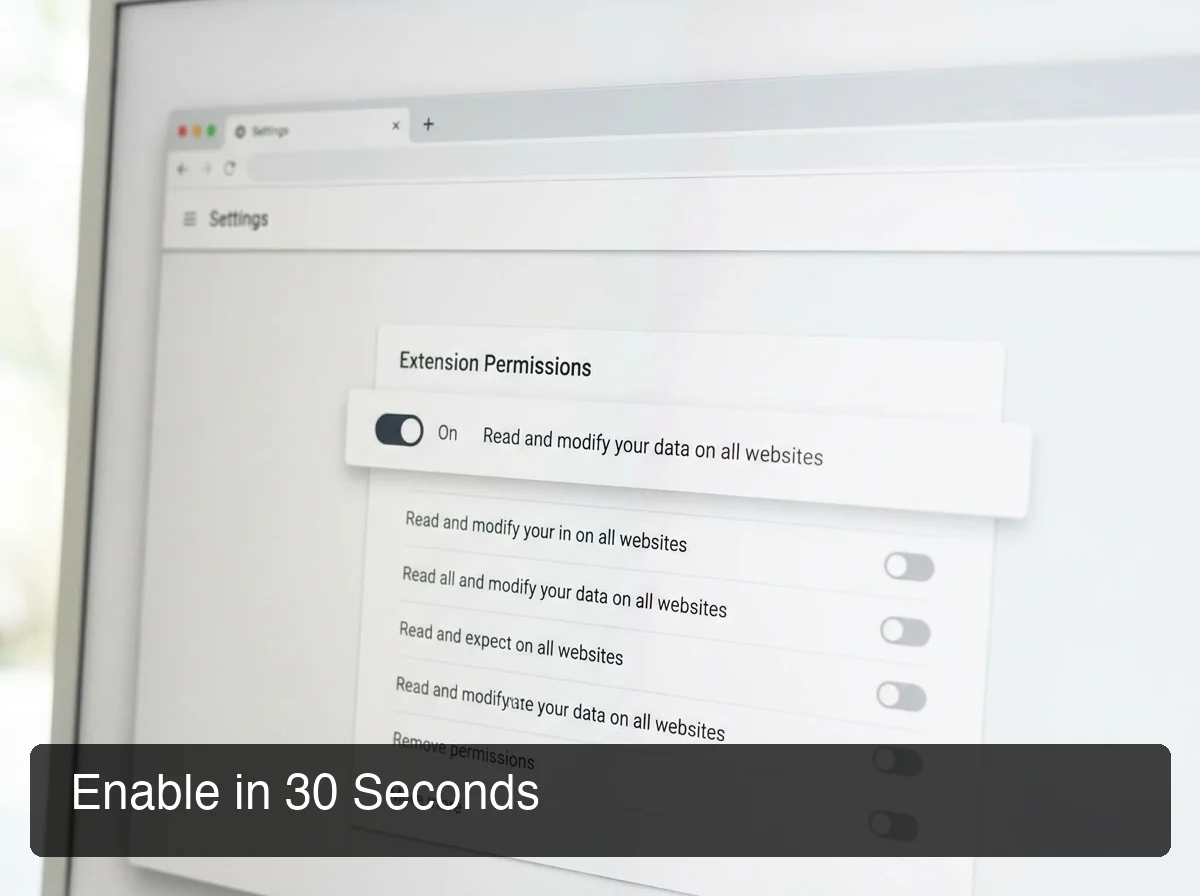 The install flow takes under a minute — add from the Chrome Web Store, accept permissions, and pin the icon to your toolbar.
Common mistake: Skipping the pin step after installing. Without pinning, you can't see the Speechify icon in the toolbar and have to dig through the extensions menu every session.
If you want to restrict Speechify to specific sites, you can manage its access under chrome://extensions → Speechify → Site access.
How Does Speechify's Chrome Extension Work on PDFs and Web Pages?
Highlight any text on a webpage and the Speechify play button appears above your selection. Click it and the extension reads aloud from that point, continuing through the rest of the article. For PDFs, Speechify opens a reader view with chapter navigation, speed controls, and voice selection visible at the top.
For standard articles and blog posts, the experience is close to frictionless. Speechify strips navigational elements — menus, sidebars, footers — and reads only the main content. The result is a clean audio experience that tracks with the text as it plays.
PDFs behave differently depending on how they're accessed. Browser-rendered PDFs (opened via direct URL in Chrome) work reliably with the extension. For downloads, uploading to Speechify's web reader gives the best control over navigation and bookmarking.
For a detailed look at features and pricing across all Speechify platforms, see our full Speechify Chrome extension review.
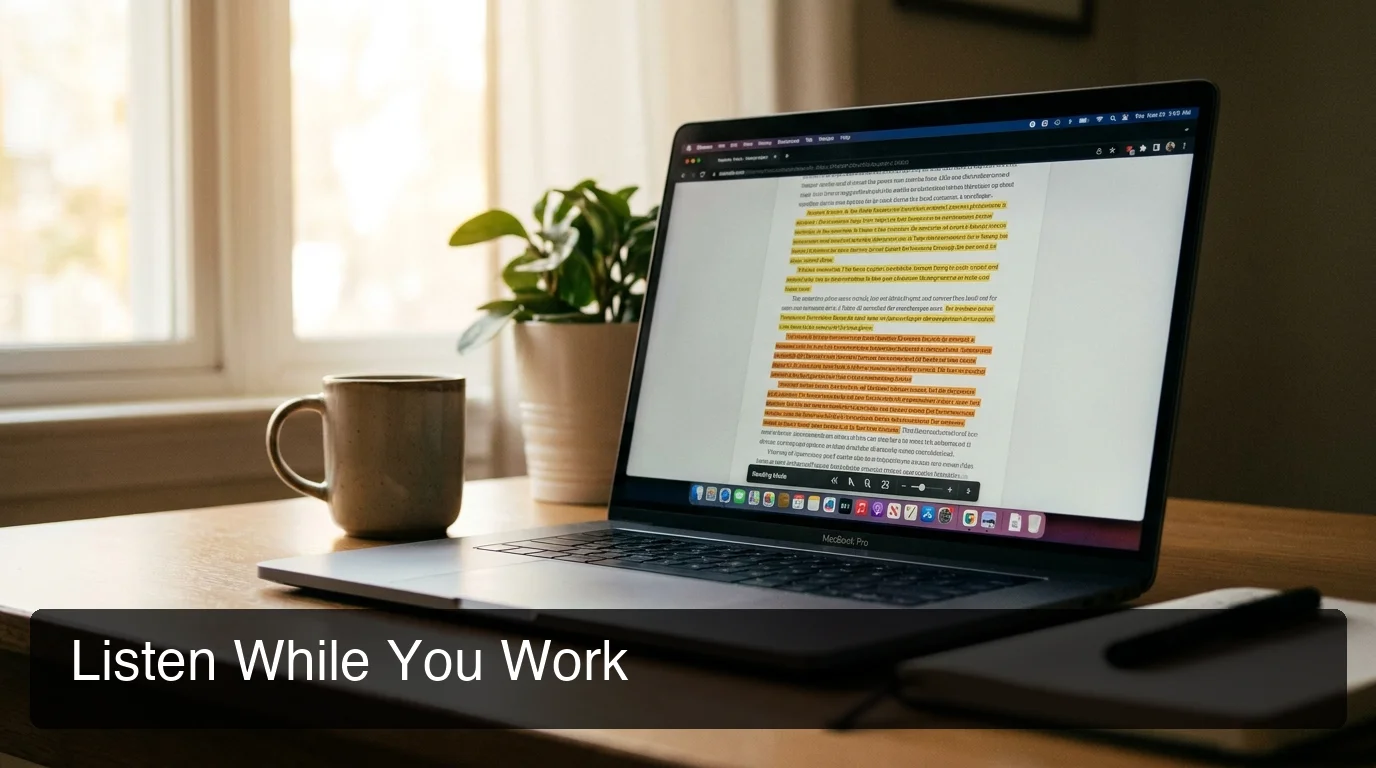 Speechify's reader view handles long articles and browser-accessible PDFs cleanly — speed controls stay visible throughout.
How Much Does the Speechify Chrome Extension Cost?
The Speechify Chrome extension is free to download but limits free users to roughly 2,000 words of listening per week. Premium starts at $15 per month or $8 per month billed annually, unlocking unlimited listening, 200+ AI voice options, and playback speeds up to 4.5x.
| Plan | Price | Listening Limit | Max Speed | Voices |
|---|---|---|---|---|
| Free | $0 | ~2,000 words/week | Standard | Basic voice set |
| Premium (monthly) | $15/month | Unlimited | 4.5x | 200+ AI voices |
| Premium (annual) | $8/month | Unlimited | 4.5x | 200+ AI voices |
Annual billing saves 46% versus monthly. Speechify also offers a short premium trial before requiring payment details.
For context: text-to-speech tools range from free (Responsivevoice, Read Aloud) to $10–$15/month for premium access. Speechify's $15 monthly sits at the high end of that range — justified primarily by voice quality and the range of AI-generated voice options.
If you're weighing other options in the reading tool space, our guide to Speechify alternatives covers both free and paid competitors across TTS and dictation.
Can You Use Speechify for Free on Chrome?
Yes — the free tier works without a subscription and doesn't require an account to start. You can highlight text on any webpage and play it immediately. The 2,000-word-per-week cap becomes noticeable fast if you're getting through research papers, long reports, or a daily news reading habit.
For light use — one or two articles per week, occasional PDF spot-checking, or testing whether TTS fits your workflow — the free tier is sufficient.
Power users hit the ceiling quickly. A typical 2,000-word article uses up the entire weekly allowance in one session. The upgrade pressure is steady once you start using Speechify regularly.
What Languages Does the Speechify Chrome Extension Support?
Speechify's Chrome extension supports 60+ languages. Voice quality and selection depth vary significantly by language — English has the widest AI voice library, while less common languages have a smaller pool of options, typically standard synthetic voices rather than the premium AI-generated ones.
The free tier covers core language support. Premium unlocks a broader voice library for non-English reading, which matters for users consuming content in multiple languages.
Confirmed languages with strong coverage include English, Spanish, French, German, Portuguese, Italian, Mandarin Chinese, Japanese, Korean, Arabic, and Hindi. Each supports multiple voices and handles standard web content with consistent playback accuracy.
The short version: Speechify's language count is real, but voice quality per language varies. For major global languages, the experience is solid. For regional variants or low-resource languages, standard synthetic voices are the norm at any tier.
Is the Speechify Chrome Extension Accurate and Safe?
Speechify reads standard English web content accurately — common vocabulary, proper nouns, and typical sentence structures are handled well. Technical or niche terminology (medical, legal, developer-specific) may generate occasional mispronunciations, but the error rate is low enough for most use cases.
On the safety side: the extension requests permission to read page content across all sites you visit. This is expected and necessary — Speechify needs to access the page's text to read it. Per Speechify's privacy policy, audio generation happens through their servers, not locally on your device.
For general web reading — articles, newsletters, documentation — this poses no meaningful privacy concern. For sensitive content like internal legal documents, private medical records, or confidential contracts, text leaves your device and passes through Speechify's infrastructure. A local TTS tool would be the appropriate choice in those cases.
 Speechify reads text to you. BossAI writes text for you — a fundamentally different direction of information flow.
How Speechify's Chrome Extension Compares to BossAI
Speechify and BossAI solve opposite problems. Speechify moves information from your screen to your ears. BossAI moves information from your voice to a text field — in any app, on any device.
| Feature | Speechify Chrome Extension | BossAI |
|---|---|---|
| Direction | Screen → Ears (listen) | Voice → Screen (write/reply) |
| Core function | Text-to-speech | AI-enhanced dictation |
| Platform | Chrome browser only | iOS, Android, macOS, Windows — all apps |
| Screen awareness | Reads existing text aloud | Reads screen and generates contextual replies |
| Use case | Consuming content passively | Creating and responding faster |
| Free tier | ~2,000 words/week (listening) | 500 words/day (writing, daily reset) |
| Premium price | $15/month | $9.99/month |
The "read vs. write" framing is the cleanest way to decide: if content is going into you, Speechify handles it. If content needs to come out of you — emails, messages, documents, replies — that's where BossAI fits.
BossAI's Boss Mode adds another layer beyond dictation: it reads whatever is on your screen and generates a contextual reply with a voice command. No copy-pasting, no explaining context. You say "Boss, reply to this email professionally" and BossAI reads the email and writes the response directly into the text field.
For voice typing directly into documents, our voice input guide for Google Docs walks through dictating into documents rather than listening to them.
Get Started with BossAI
Speechify is the right tool when you want your browser to read content to you. For writing faster — composing emails, dictating Slack messages, drafting notes across every app on your device — BossAI handles that with AI cleanup built in and Boss Mode for screen-aware replies.
FAQ
Is there a Speechify browser extension?
Yes — Speechify's Chrome extension is free to install from the Chrome Web Store. It reads any webpage, PDF, or Google Doc aloud with adjustable speed and voice options, rated 4.9 stars across 276,000+ reviews. No account required to get started.
How do I use the Speechify Chrome extension?
After installing from the Chrome Web Store, navigate to any webpage and highlight the text you want to hear. A Speechify play button appears above your selection — click it to start, and the floating player shows speed and voice controls. Alternatively, click the extension icon in your Chrome toolbar to trigger auto-reading of the full page.
Is the Speechify Chrome extension safe?
Speechify requests permission to read page content across the sites you visit — standard for any text-to-speech extension. For general web reading like articles and newsletters, this is safe. For highly confidential material, a local TTS tool that processes content on-device would be more appropriate.
Can Speechify read PDFs in Chrome?
Yes. Speechify reads PDFs that open directly in a Chrome tab, automatically offering a reader view with chapter navigation and speed controls. For downloadable PDF files, uploading to Speechify's web reader gives the best navigation and bookmarking experience.
What is BossAI and how is it different from Speechify?
BossAI is an AI-powered voice keyboard available on iOS, Android, macOS, and Windows. Where Speechify reads written text aloud to you, BossAI goes the other direction: it transcribes your speech into polished text, strips filler words automatically, and includes Boss Mode — a screen-reading feature that reads what's on your screen and generates a contextual reply without requiring any copy-pasting.
Is there a free Chrome extension that reads text aloud?
Several exist. Speechify's free tier reads approximately 2,000 words per week; Read Aloud is a fully free alternative with no weekly limit but fewer voice options. Natural Reader also offers a Chrome extension with a generous free tier — the main trade-off being voice naturalness, which is noticeably better in Speechify's premium AI voices.
What's the difference between the Speechify Chrome extension and the Speechify app?
The Chrome extension is browser-only — it reads content while you're in Chrome. The Speechify desktop and mobile apps extend reading to an integrated library with uploaded documents, ebooks, and offline content; premium subscribers get the same voice library and speed access across both. For everyday web reading, the extension alone is sufficient.